STEP-BY-STEP DIRECTIONS:
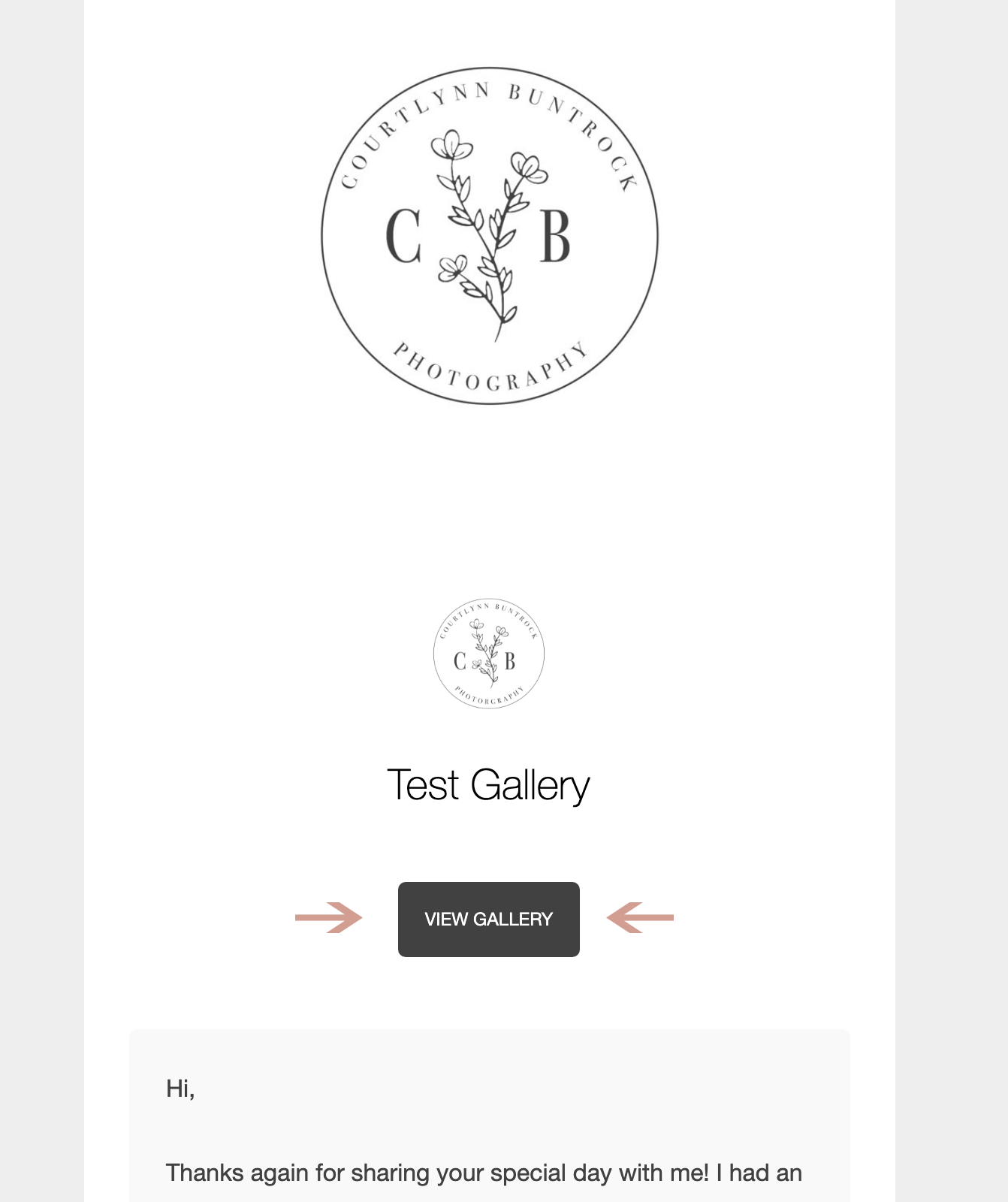
STEP 1: View Gallery
From your email, click the "View Gallery" button
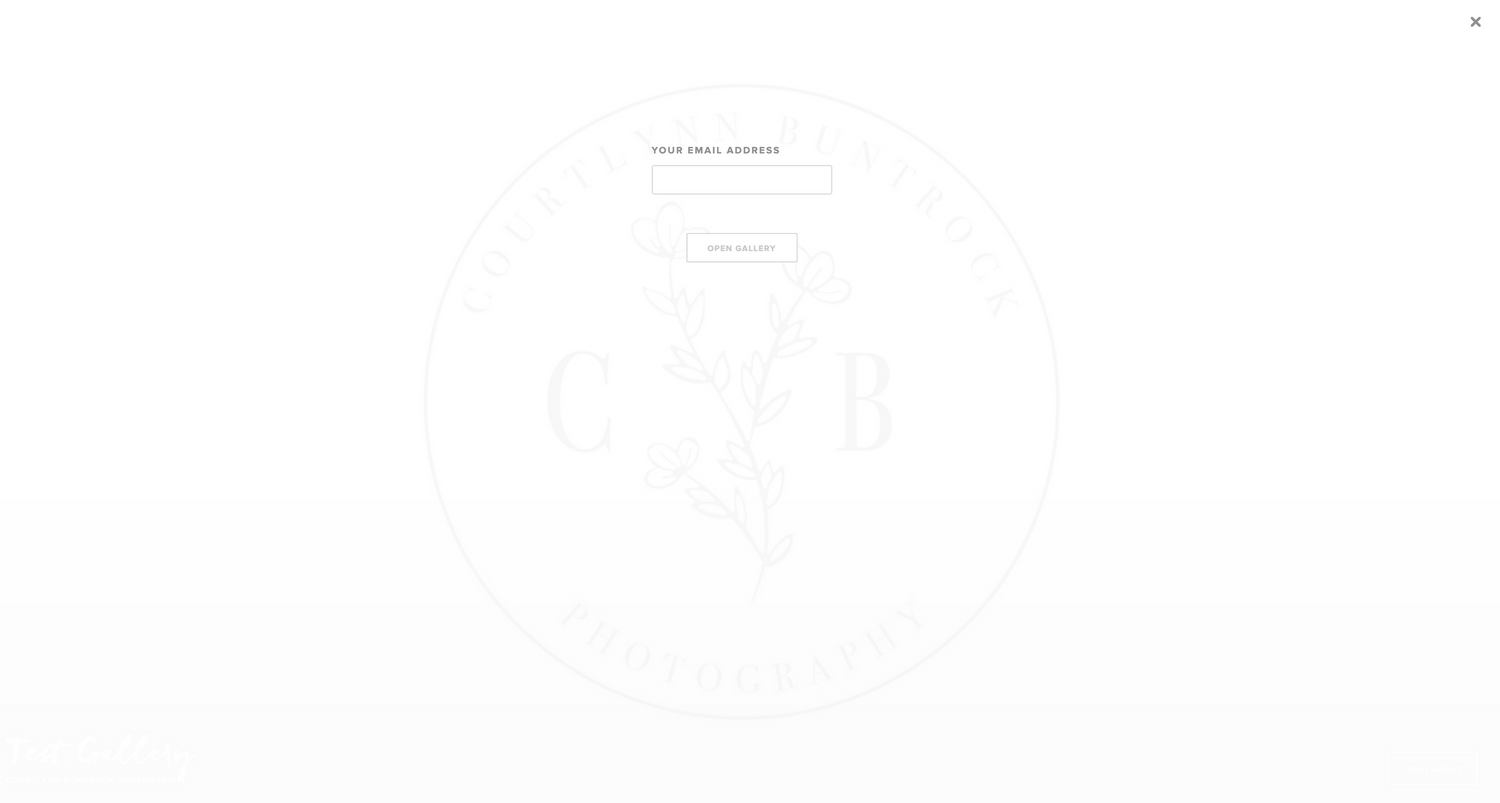
STEP 2: Open Gallery
Click the "Open Gallery" button in the bottom right corner

STEP 3: Enter Email
Enter your email address and click "Open Gallery"
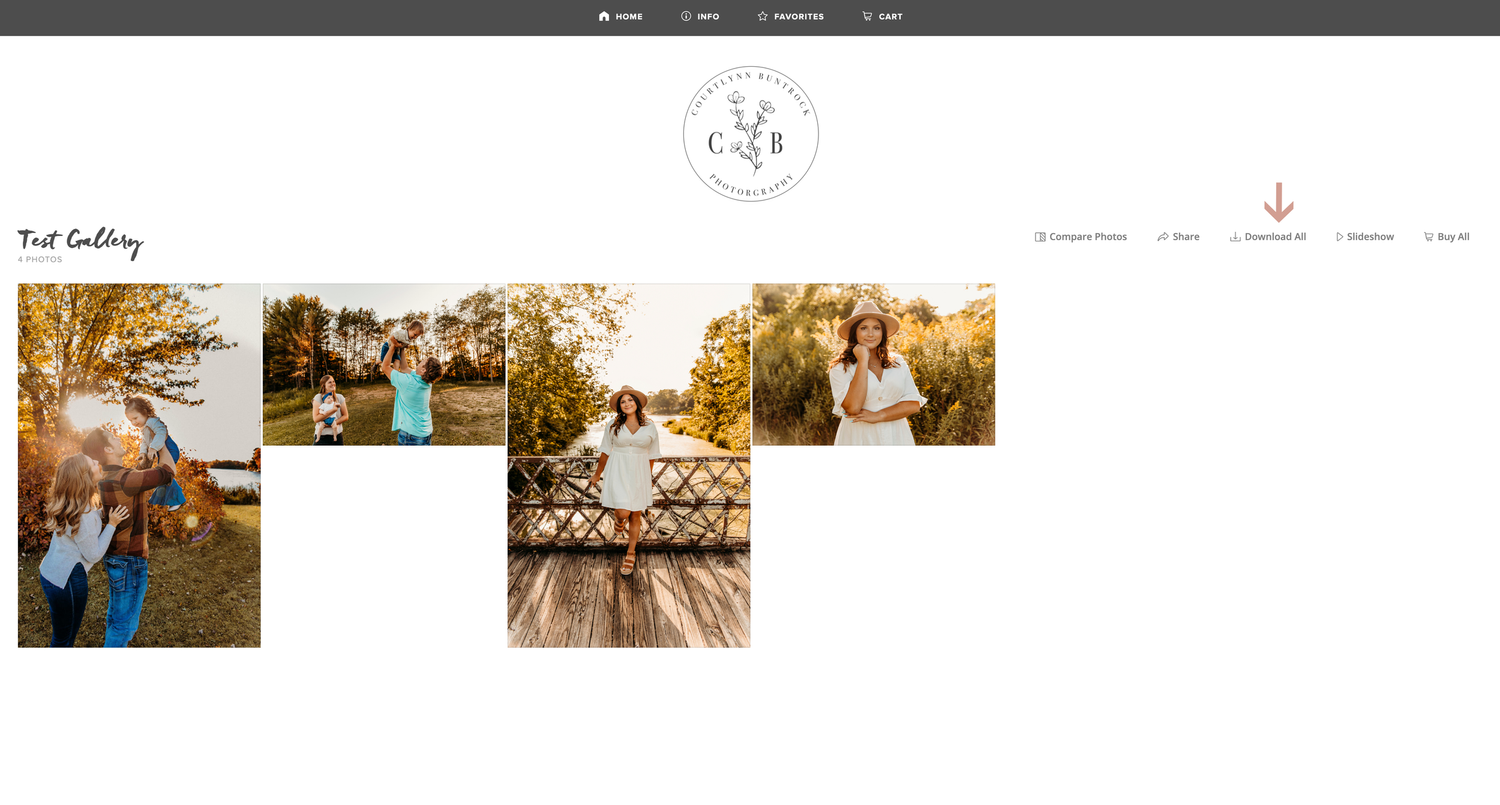
STEP 4: Download
From the top right menu bar click "Download All"
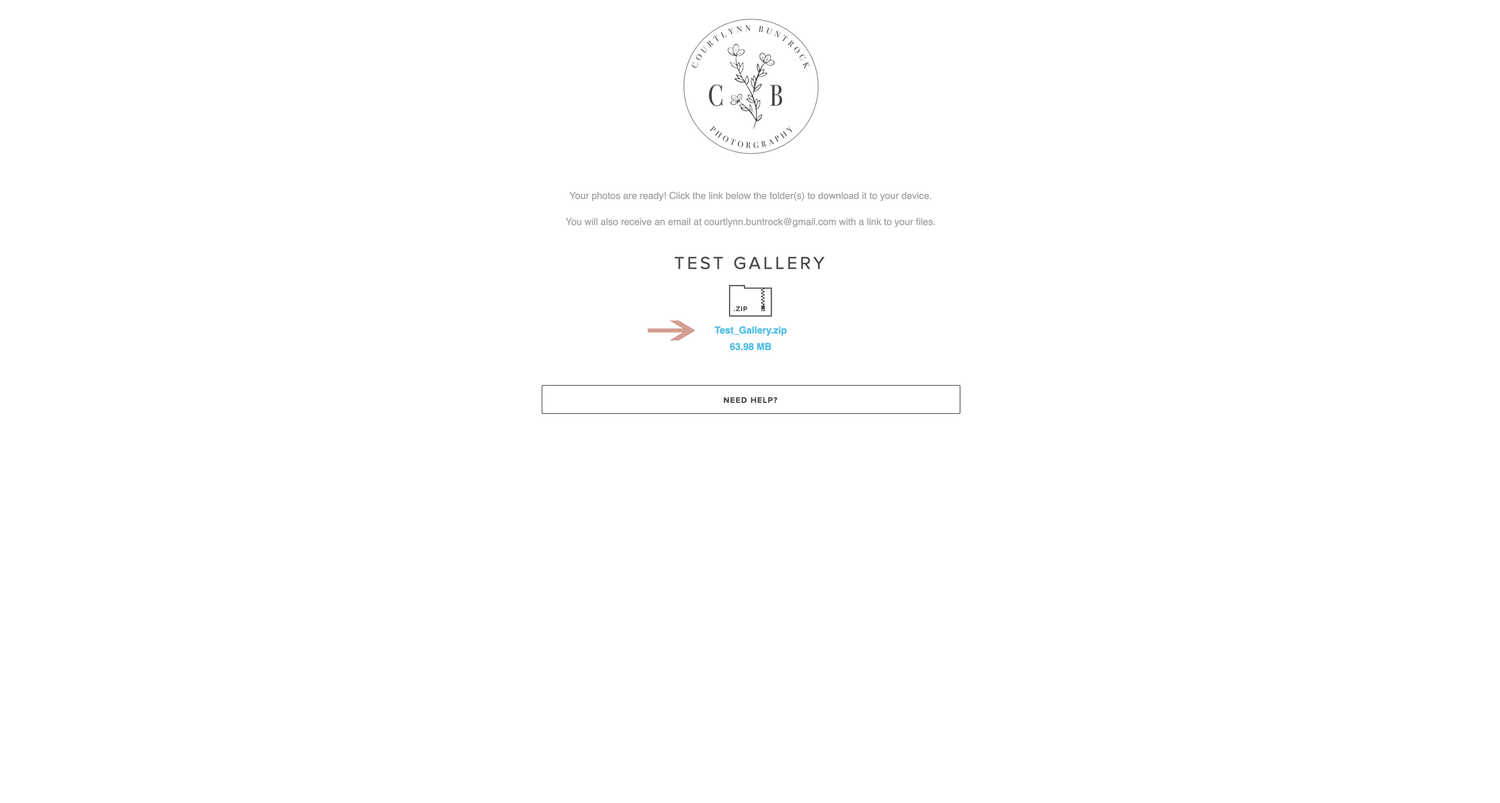
STEP 5: Receiving Files
A new tab will open and you photos will be processed into a zip folder. If you have a large gallery, your photos may be in multiple zip folders. To move these to your computer downloads click the blue text under the zip file image(s). This will download the folder to your computer.
STEP 6: Un-zip Files
Now that your zip folder(s) are moved to your computer you will need to locate the folder(s). Typically they will go to your "downloads" folder.
Once you locate the zip folder(s), you will need to "unzip" them.
On a Mac you do this by double clicking the zip folder. It will then create another folder that is accessible.
On a PC you do this by right-clicking the zip folder. From the drop-down select "extract all". It will then create another folder that is accessible.

STEP 7: Print Release
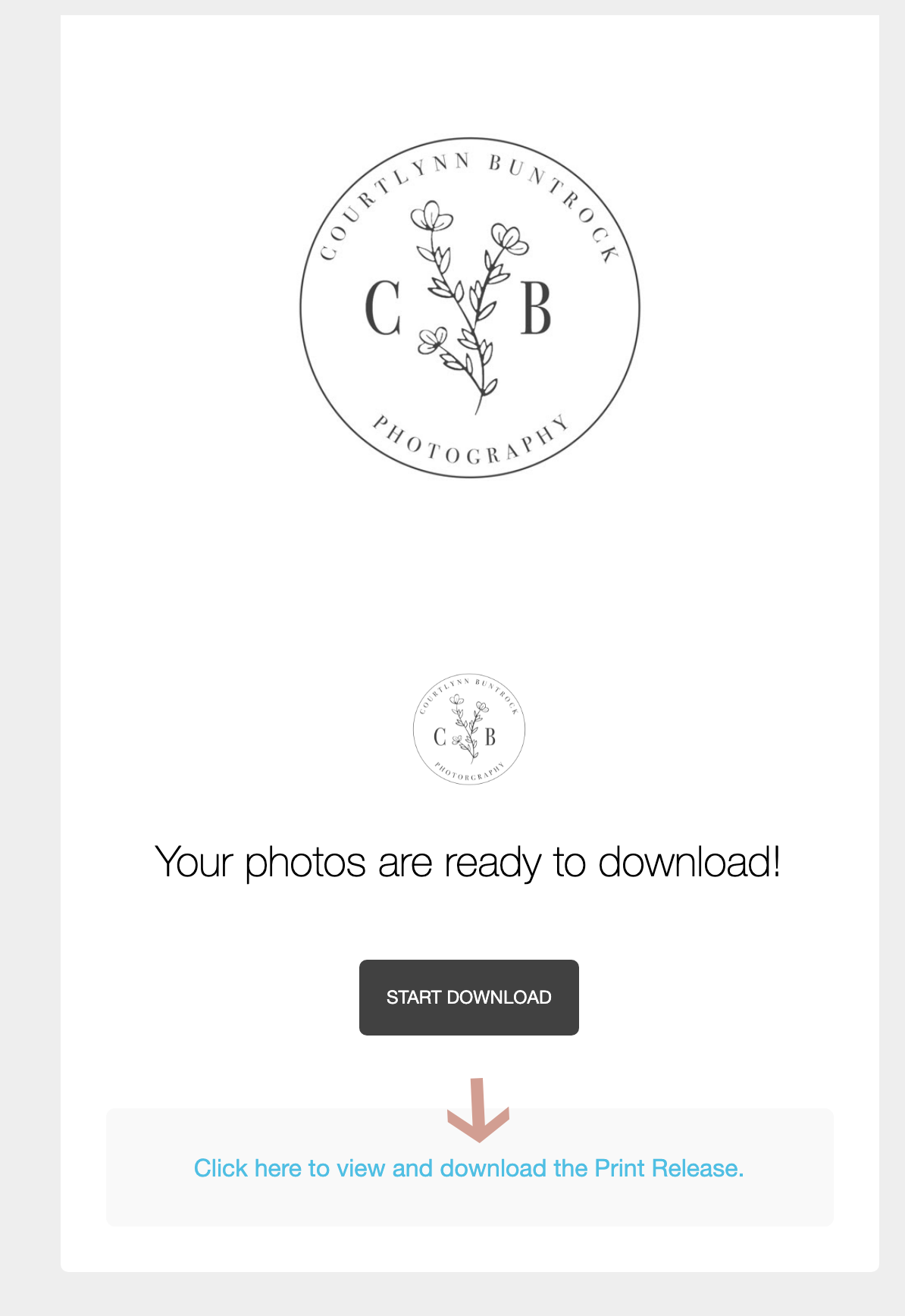
A email was sent to you titled "Zip File of Photos from x Gallery - Original". Open this email.
Under the "start download" button you will see a clickable link that will give you access to your print release.
STEP 8: Backup Photos
Once your gallery closes you will not be able to re-access the downloads. Due to this I strongly recommend backing up your photos to another location. This could be on a flash drive / external hard drive, an online software such as google photos / google drive / dropbox, or on another computer. This ensures you can always have a copy of your photos in the event you lose your original files.